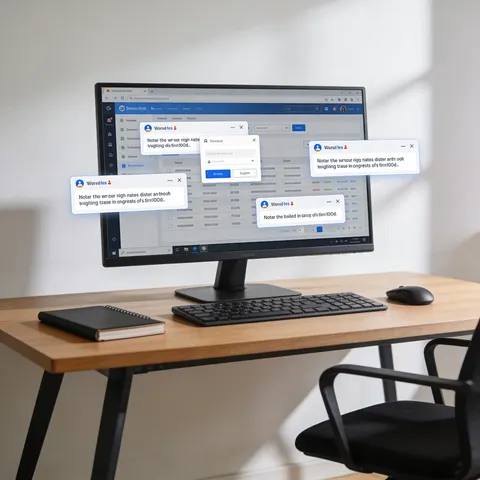
How do I stop pop-up ads on my business computer? You can stop most pop-up ads by blocking website notifications in your browser settings and removing any suspicious browser extensions. For a business computer, it is also important to run a malware scan to ensure the pop-ups are not caused by a deeper adware infection.
When pop-ups take over a business computer, they do more than just annoy your team. They break focus, slow down important tasks, and can even trick employees into downloading harmful software. Fixing this quickly keeps your business running smoothly and safely.
Why Your Business Computer Is Showing Pop-Up Ads
Pop-ups do not just appear out of nowhere. They usually show up on business computers for a few common reasons:
- Website notification spam: An employee clicked “Allow” when a website asked to send notifications, and now that site is pushing ads directly to the desktop.
- Compromised browser extensions: A helpful tool or add-on was installed, but it secretly includes code that forces ads onto the screen.
- Adware infections: Malicious software has been installed on the computer itself, often bundled with free downloads, and is actively injecting ads into the browser.
Are These Pop-Ups Safe or Malicious?
It helps to know if you are dealing with a simple browser setting or a real security threat. Harmless notification pop-ups usually come from known websites like news outlets or blogs. They only appear in the corner of your screen and stop if you close the browser.
Malicious pop-ups act differently. Watch out for these warning signs:
- They appear in the middle of your screen or cover the whole page.
- They keep showing up even when your web browser is completely closed.
- They use scary warnings, like telling you your computer is infected or needs an urgent update.
- They push you to download a file or call a fake support number.
How to Stop Pop-Up Ads: Step-by-Step
You can usually stop these ads in a few minutes. Follow these steps to clean up your browser and check your computer.
- Block browser notifications: Open your browser settings to stop sites from sending alerts. In Chrome, go to Settings > Privacy and security > Site settings > Notifications, and remove any sites you do not recognize. In Edge, go to Settings > Cookies and site permissions > Notifications. In Firefox, go to Settings > Privacy & Security > Permissions > Notifications, and click Settings to remove unwanted sites.
- Remove suspicious browser extensions: Check your installed add-ons. In Chrome, click the three dots > Extensions > Manage Extensions. In Edge, click the three dots > Extensions. In Firefox, click the three lines > Add-ons and themes. Delete anything your team did not install on purpose.
- Clear browser data: Sometimes bad data gets stuck in your browser. Go to your browser’s privacy settings and clear your cookies and site data. This removes stored information that might be triggering the ads.
- Check installed programs on Windows: Press the Windows key, type “Control Panel,” and select “Uninstall a program” (or go to Settings > Apps > Installed apps). Look for any strange software that was installed recently and uninstall it.
- Run a full malware scan: To be safe, run a complete system scan. Use reputable tools like Malwarebytes or Bitdefender GravityZone to find and remove any hidden adware that manual steps might miss.
Pop-Ups vs Adware: When It’s Something Bigger
Sometimes, stopping the pop-ups is not enough. If the ads keep coming back after you follow the steps above, or if the computer is running very slowly, you might have a bigger problem.
This is when a simple annoyance turns into a real business risk. If you notice other strange behavior, you should check for signs of adware on your business computer. It is also helpful to understand the difference between adware and spyware so you know exactly what kind of threat your business is facing.
How to Prevent Pop-Up Ads on Business Devices
The best way to handle pop-ups is to stop them before they start. A few simple rules can protect your business computers:
- Tell employees to always click “Block” when websites ask to send notifications.
- Only allow staff to install approved browser extensions that are needed for work.
- Keep your web browsers and operating systems updated to the latest versions.
- If you ever find that your browser settings have been locked or changed without permission, follow our browser hijacker removal guide to take back control.
For more practical guides like this, explore our adware removal tools and resources.
If you want to go beyond one-off fixes like this and protect your business long-term, we are developing a series of short, practical cybersecurity courses designed specifically for small business owners. These focus on real-world protection strategies you can apply without needing an IT department.
You can learn more at neilbrownreviews.com.