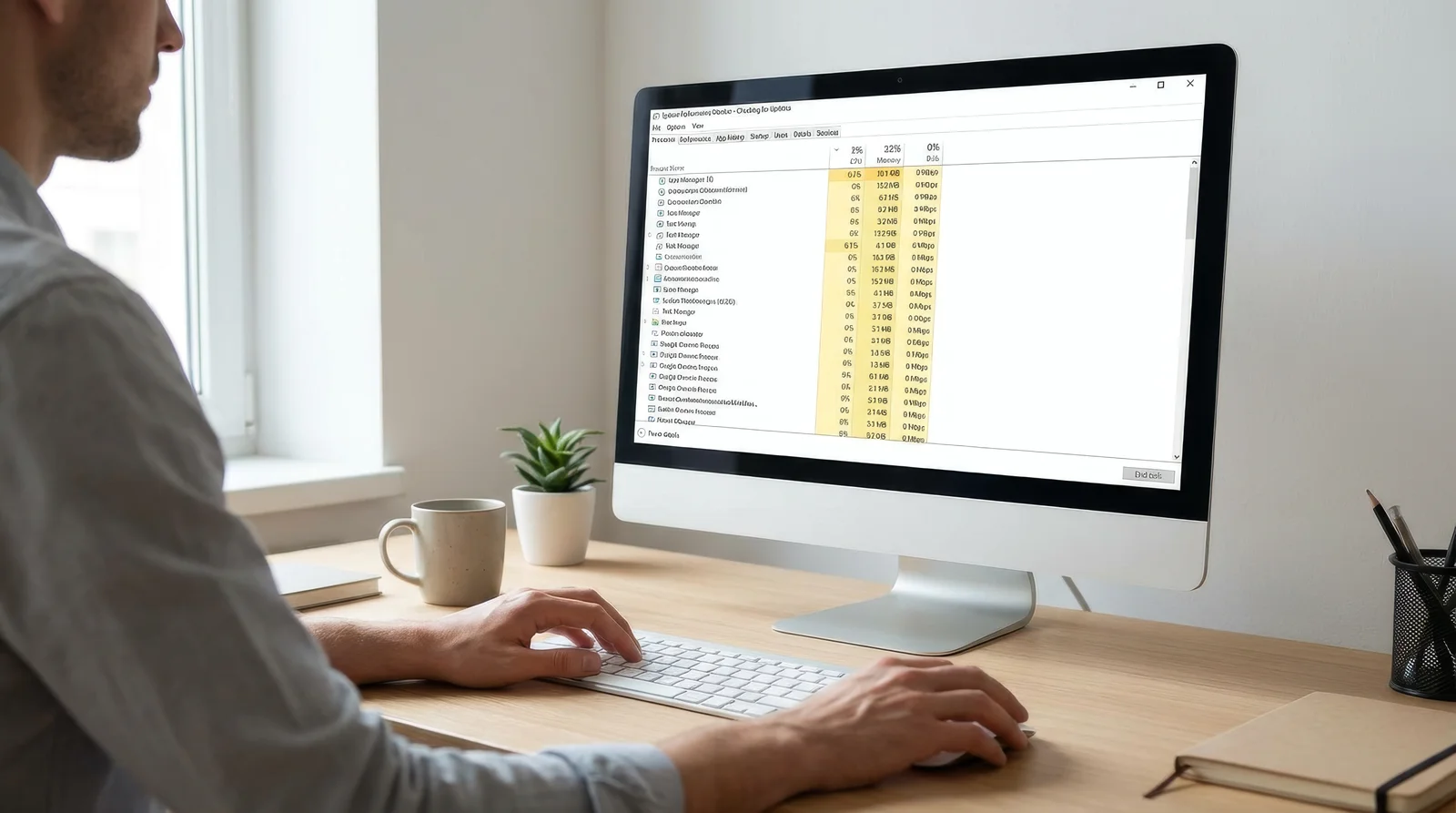
How do I check if my business computer has spyware? You can check for spyware by looking for unknown programs in your Task Manager, reviewing your installed apps, and running a full system scan with reputable security software. If your computer is running unusually slow or your accounts have been compromised, you need to act immediately.
Spyware is much harder to spot than adware because it is designed to hide. While adware wants you to see pop-ups, spyware quietly steals your passwords, client data, and financial information. This silent approach makes it incredibly dangerous for small businesses that rely on secure data.
Quick Check: Most Common Signs
- Your computer or internet connection suddenly becomes incredibly slow for no clear reason.
- Your webcam or microphone indicator light turns on when you are not using them.
- You notice strange programs running in the background that you did not install.
Signs Your Computer Might Have Spyware
If you suspect a problem, look closer. These are the classic symptoms that a business device has been compromised:
- Unexplained slowdowns that make basic tasks take much longer than usual.
- Your webcam or microphone activating on their own without any apps open.
- Unknown programs running in the background and using up your computer’s memory.
- Passwords compromised or accounts accessed without your permission.
- Unusual network activity or massive data usage spikes when the computer is idle.
- Your laptop battery draining much faster than normal.
If you are seeing these symptoms, it is crucial to understand how spyware differs from standard adware so you know exactly what you are dealing with.
How to Check for Spyware: Step-by-Step
You do not need to be an IT expert to check your computer. Follow these steps to find hidden spyware on your business devices.
- Check Task Manager for unknown processes: Press Ctrl+Shift+Esc to open Task Manager. Look through the list for unfamiliar names that are using a lot of CPU or memory.
- Review installed programs: Open your Control Panel or go to Settings > Apps. Sort the list by date and look for any strange software that was installed recently.
- Check browser extensions: Open your web browser and review your installed extensions. Remove anything suspicious or that your team did not install on purpose.
- Check startup programs: Open Task Manager again and click the Startup tab. Disable any unknown programs that are set to run automatically when your computer turns on.
- Run a dedicated anti-spyware scan: Manual checks are not enough. Run a full system scan using reputable tools like Malwarebytes or Bitdefender GravityZone to find deeply hidden spyware.
What to Do If You Find Spyware
If you find spyware on a work computer, you need to move fast to protect your business data.
- Disconnect the infected computer from your office network and Wi-Fi immediately.
- Run a full malware removal scan to delete the malicious files completely.
- Change all your business passwords from a different, clean device.
- Enable two-factor authentication on all your business accounts to block unauthorized access.
If the spyware managed to steal your email password, you might soon find yourself wondering why your business email is sending spam to contacts.
How to Keep Spyware Off Your Business Computers
The best defense is stopping spyware before it gets installed. A few simple rules can keep your business safe:
- Never download software from unverified websites or click on suspicious email links.
- Keep your operating system and all business software updated to the latest versions.
- Train your employees to recognize phishing emails and deceptive download buttons.
- Watch out for early signs of adware infections, as adware and spyware often travel together.
For more practical guides like this, explore our adware removal tools and resources.
If you want to go beyond one-off fixes like this and protect your business long-term, we are developing a series of short, practical cybersecurity courses designed specifically for small business owners. These focus on real-world protection strategies you can apply without needing an IT department.
You can learn more at neilbrownreviews.com.